Guide
How to make a school website: a checklist
A practical guide for private schools, language and tutoring centres, kindergartens and clubs: which pages parents look for, what to write on each one, and how to stop the whole thing from going out of date.
In this guide
- 1. What a school website is for
- 2. The pages parents look for
- 3. Keeping it up to date
- 4. Turning visits into inquiries
- 5. Domain, HTTPS and trust
- 6. Languages, mobile, accessibility, speed
- 7. Getting found on Google
- 8. Privacy and GDPR basics
- 9. Common mistakes
- 10. The checklist
- 11. Doing it with Edunation
- 12. Questions and answers
Before you start: what a school website is for
This guide is for schools that have to win their own students: private schools, language and tutoring centres, music and art schools, kindergartens and sports clubs. For you, the website is not a brochure. For most families it is the first place they check you, often in the evening, on a phone, with two or three other schools open in the next tabs.
A good school website does three jobs:
- 1 It answers parents’ questions before they have to ask: what you teach, for which ages, when, where and for how much.
- 2 It turns interest into an inquiry. A parent who is ready should be able to ask a question or book a trial lesson in under a minute.
- 3 It builds trust with real people, real photos, a real address and information that is visibly current.
Everything below follows from those three jobs. A small site that does them well beats a large one that does not. If you are short on time, start with the pages in the first part of the checklist and add the rest later.
The pages parents look for
Parents tend to look for the same things in roughly the same order. These are the pages worth having, and what makes each one useful.
Home page
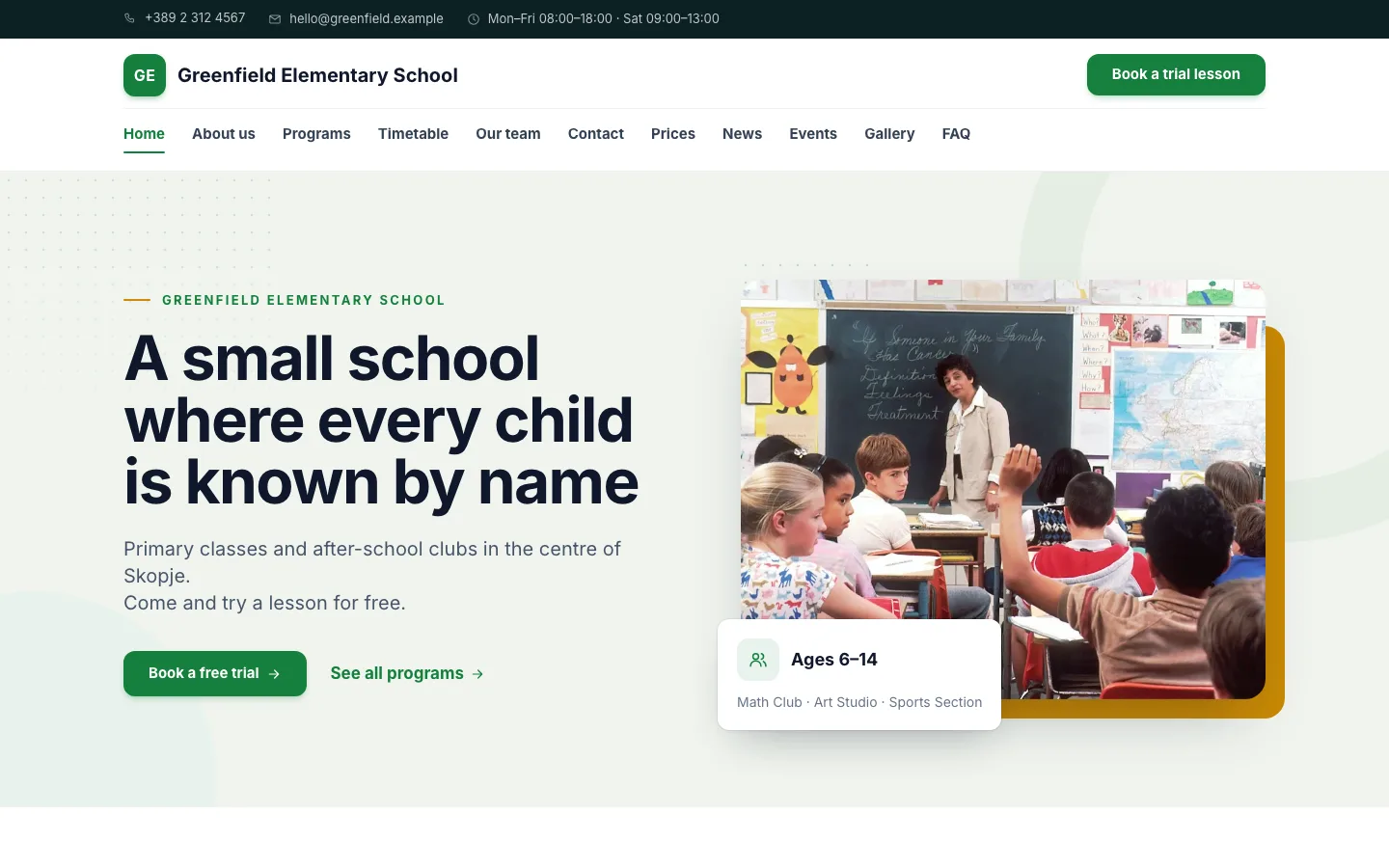
Say in one sentence who you are, for whom and where. “English courses for children aged 6 to 14, in the town centre” tells a parent far more than “Welcome to our school”. Below it, show your main programs, one clear button (book a trial lesson, or send an inquiry) and your phone number. The home page is a signpost: keep it short and point people to the pages below.
Tip: Open your home page on a phone. If the first screen does not say what you teach and how to get in touch, rewrite it.
Programs and courses
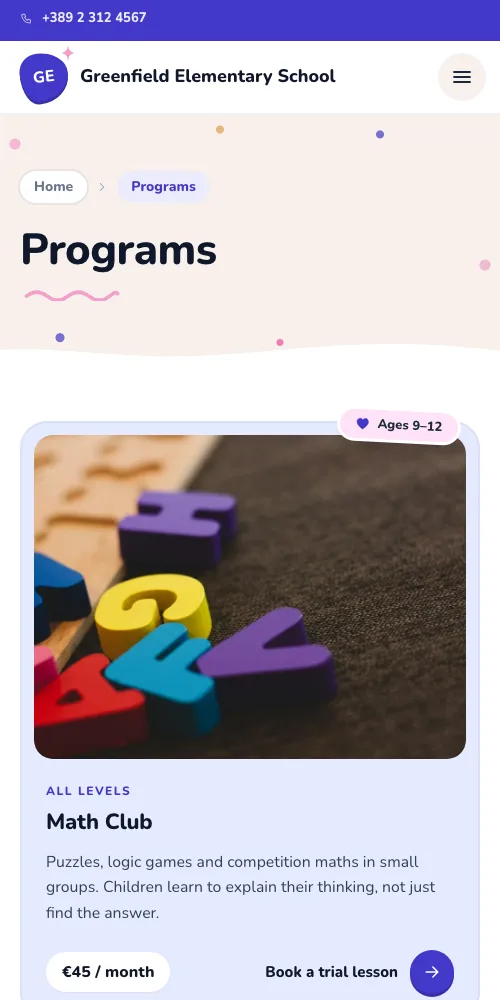
Give every program its own entry with the same facts each time: who it is for (age or level), what children will learn, how often and how long the lessons are, group size, when it starts, and the price or a link to prices. Parents compare programs side by side, so a consistent layout matters more than long descriptions.
Tip: Avoid internal names. Parents search for “chess for 7-year-olds”, not “Junior Level A2”.
Timetable
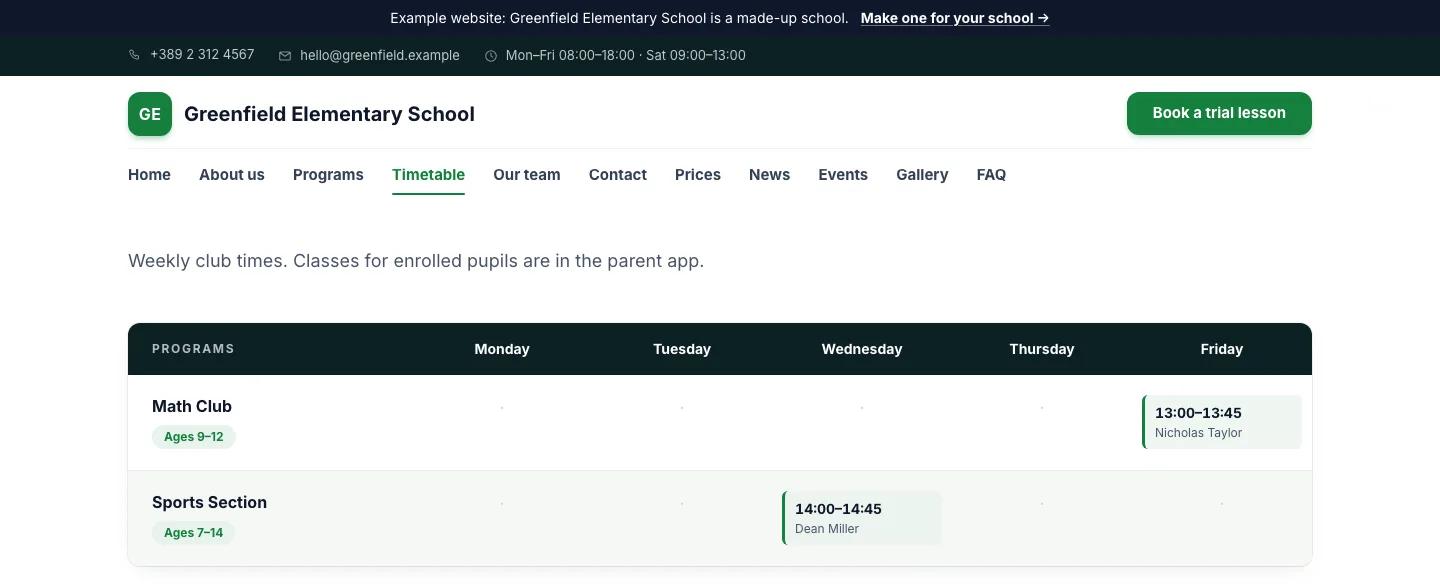
Show when each group meets: day, time, place or room, and teacher. A weekly table on the page is easier to read than a PDF, works on phones and can be read by search engines. If the timetable changes by term, say which term it is for.
Tip: If you publish only one thing reliably, make it this. A wrong time on the website costs a family a wasted trip, and costs you their trust.
Teachers and team
Parents choose people as much as programs. A photo, a name, what each person teaches and a sentence or two about their background is enough. Ask each teacher before you publish their photo and details, and update the page when people join or leave.
Prices
Many schools leave prices off so that people will call. In practice, plenty of parents simply move on to a school that shows them. Publish at least a starting price for each program, what it includes (materials, number of lessons), how payment works (monthly, per term, per year) and any discounts, for example for siblings. If a price really depends on the case, explain what it depends on.
Tip: Put the school year next to the price list, so nobody has to wonder whether it is last year’s.
Events and calendar
Open days, holidays, enrolment deadlines, concerts and exams. A simple list of upcoming dates is enough; remove past events or move them to an archive. A calendar that families can subscribe to on their phones (an iCal feed) is a welcome extra for current families.
News
A few short posts a term are plenty: a new group starting, a competition result, a school trip. News shows that the school is alive. A news page whose latest post is two years old shows the opposite, so if you cannot keep it going, leave it off rather than leave it stale.
Gallery
Real photos of your rooms, materials and lessons say more than stock photos ever will. A handful of good, well-lit pictures is enough. Resize them for the web and give each a short description. Photos in which children can be recognised need their parents’ consent (more on that below).
Contact and trial lesson booking
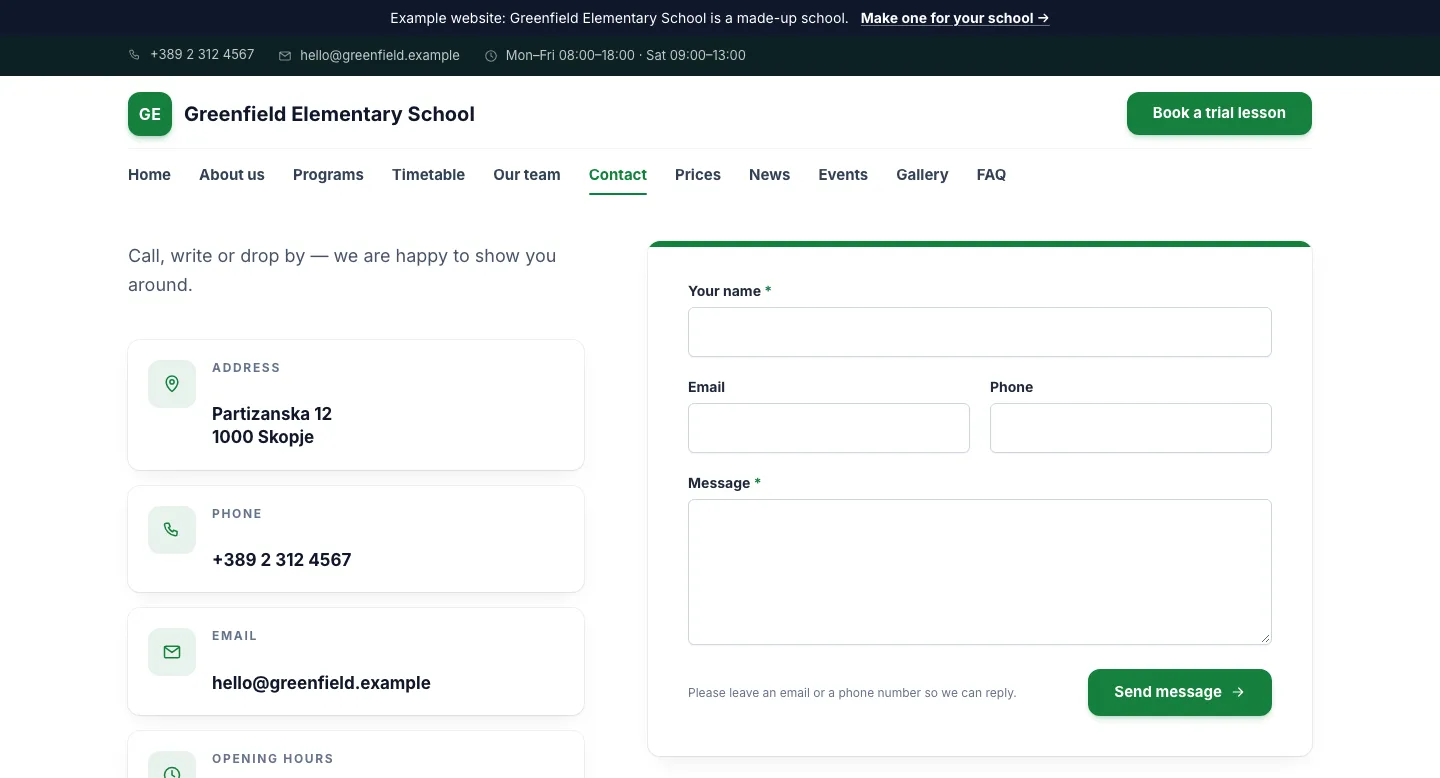
Address with a map, phone number, email, opening hours and a short form. If you offer trial lessons, give them their own form with only the fields you need: the child’s age, the program and a way to reach the parent. Then link to it from every page, not just this one.
Tip: Make the phone number tappable on phones, so a parent can call you with one tap.
Frequently asked questions
Collect the questions your staff answer on the phone every week. Can my child join mid-year? What happens if we miss a lesson? Do you teach online? How do we pay? Answering them on the website saves calls and reassures the parents who would never call to ask.
Privacy policy
Explain what personal data the site collects (through forms, cookies or analytics), why, how long you keep it and whom to contact about it. In the EU it is a legal requirement for a site that collects personal data, and parents increasingly look for it.
Keeping it up to date: where most school websites fail
Most school websites are not bad on the day they go live. They go bad over the following year: the timetable still shows September, a teacher who left is still on the team page, last year’s prices are still online, and the latest news is from two springs ago.
This matters more than design. A parent who turns up on Tuesday at five because the website said so, only to find that the group meets on Wednesdays, will not trust anything else on your site. Stale information also creates work: every wrong detail becomes a phone call or an awkward conversation at reception.
There are two ways to deal with it. The first is discipline: make one person responsible, and put a recurring reminder in the calendar for the start of every term and for every price change. Keep a short list of what to check: timetable, prices, team, events and contact details.
The second is to stop keeping the same information in two places. Your groups, timetable, teachers and events already live somewhere, often in a school management system or a spreadsheet. If the website reads them from that one source, it updates itself when you change them. That is the idea behind a website fed from your school management system: you change the timetable once, and the website, the parents’ app and the teachers’ schedules all show the same thing.
Turning visits into inquiries
A website that nobody contacts you through is a cost, not an asset. Make getting in touch easy, and handle what comes in with care.
- Short forms. Ask only for what you need for the first reply: a name, a phone number or email, the child’s age and the program. Every extra field loses a few parents.
- One clear next step on every page. One main button, such as “Book a trial lesson”, in the header and at the end of every program.
- Reply quickly. Parents often contact several schools at once, and the first to send a useful answer has the advantage. Aim to reply on the same working day, and tell people when they can expect to hear from you.
- Keep inquiries in one place. Messages spread across a personal inbox, social media and notes on paper get lost. Collect them in one list where you can see who has had a reply, who came for a trial and who enrolled.
- Ask how they found you. One optional question on the form shows you, over time, whether families come from the website, from recommendations or from social media.
Domain, HTTPS and trust
Your own domain (yourschool.com, or your country’s ending) looks more established than a free subdomain of a website builder. It is easier to say on the phone and print on a flyer, and it stays yours if you change providers later. Register it in the school’s name, not in the name of an employee or the person who happened to build the site, and keep the login where the school can find it.
Every page should load over HTTPS, the padlock in the browser’s address bar. Browsers warn visitors about forms on pages that are not secure, and an inquiry form is exactly where you need their trust. Most modern hosting includes free certificates; check that yours renews automatically.
The other signs of trust are simple: a full street address, a phone number that someone answers, the school’s legal name (usually in the footer), real photos, and a site that is visibly looked after.
Languages, mobile, accessibility and speed
Languages
If your families speak more than one language, or you are in a bilingual area, a tourist town or teach students from abroad, offer the main pages in each language your families use. A properly translated page is better than an automatic translation button. Let visitors switch language on every page, and keep the same structure in every version.
Mobile first
Many parents will only ever see your website on a phone. Check every page on a small screen: text readable without zooming, buttons big enough to tap, a timetable that is not cut off at the side, and a phone number one tap away.
Accessibility
An accessible website is easier for everyone to use: enough contrast between text and background, real headings in a logical order, link text that says where it leads instead of “click here”, descriptions on images, and forms with visible labels. Do not put important information only in an image or a PDF.
Speed
Slow pages lose visitors, especially on mobile data. The usual culprits are huge photos straight from a camera, sliders and heavy plugins. Resize and compress your images (modern formats such as WebP help), keep the home page light, and test it on a phone with an ordinary connection.
Getting found on Google: the basics
Nobody can promise you a position in search results, and you should be wary of anyone who does. But a few basics make it much easier for Google to understand your site and show it to families nearby.
- A unique title and description for every page. The title, around 50 to 60 characters, is the blue link in the results, for example “Piano lessons for children | School name, Town”. The description is the short text under it: write it for a parent, not for a robot.
- Clear headings and real text. One main heading per page, and the words parents actually use: the subject, the age group, the neighbourhood or town.
- A sitemap lists your pages so search engines can find them all. Most website platforms create one for you. Submit it in Google Search Console, which is free and also shows you which searches bring people to your site.
- Structured data (schema.org markup) describes your school, address, events and questions in a format that search engines read directly. Good platforms add it automatically.
- Google Business Profile. For local searches such as “English school near me”, your free Business Profile matters as much as the website. Fill it in completely, choose accurate categories, add photos and opening hours, link to your website, and reply to reviews.
- The same details everywhere. Use the same school name, address and phone number on your website, your Business Profile, your social media and local directories.
Beyond that, the best long-term signal is a website that is genuinely useful and current: real programs, a real timetable and pages that answer what families are searching for.
Privacy and GDPR basics for school websites
This section is general information, not legal advice. The rules differ from country to country; for your own situation, ask a lawyer or your national data protection authority.
- A privacy notice. Publish a privacy policy that says who runs the site, what data the forms collect and why, how long you keep it and how people can ask for it to be deleted. Link to it from the footer and from every form.
- Forms that collect only what you need. A first inquiry needs no date of birth, home address or health information.
- A cookie banner only if you need one. A site without analytics or advertising tracking generally does not need a consent banner for strictly necessary cookies. If you add Google Analytics, the Meta Pixel or similar, ask for consent before they load, and make refusing as easy as accepting.
- Photos of children. Get written consent from parents before publishing photos or videos in which children can be recognised, and remove them promptly if consent is withdrawn. Do not put children’s full names next to their photos. Shots from behind, hands at work or an empty classroom often tell the story just as well.
- Embedded content. Maps, videos and social media widgets can set their own cookies. Load them only after a click, or cover them in your privacy policy and consent banner.
Common mistakes to avoid
Out-of-date information.
Last year’s timetable, prices or team. The most common mistake, and the most damaging.
No prices at all.
Parents comparing schools often skip the one that makes them call to find out.
Important information only in a PDF or an image.
Hard to read on a phone, invisible to search engines, and usually the first thing to go out of date.
Only a contact form.
Some parents would rather call or send a message. Show the phone number and email as well.
Stock photos.
Smiling models in a generic classroom tell parents nothing about your school.
Copied or generic text.
Search engines have little reason to show a text that already exists elsewhere, and parents notice when a description could fit any school.
A website nobody owns.
If nobody is responsible for keeping it current, nobody will.
Social media instead of a website.
Posts are great for daily life, but they scroll away. The timetable, prices and contact details belong on a page parents can find in seconds.
The checklist
Go through it before you launch, and again at the start of every term. Tick the boxes as you go.
Doing it with Edunation
Edunation is school management software, and it includes a website builder for schools. It was built for the problem described above: the website reads your programs, timetable, teachers, events and news straight from Edunation, so when you move a lesson or open a new group, the website changes with it. Inquiries and trial lesson requests from the site arrive in Edunation, next to the rest of your school’s work.
You set it up yourself: pick a design, add your texts and photos, connect your own domain, and publish in the languages your families speak. HTTPS, a sitemap, page titles, structured data and a privacy policy template are built in, and a cookie banner appears only if you add analytics.
The website is an add-on to an Edunation plan at €20 a month or €200 a year, and it comes included with the Institution plan. If you only need the website, the Website plan costs €20 a month (€200 a year). You can try it free during the 14-day trial.
Greenfield is a made-up school, so you can click around freely.
Questions and answers
How much does a school website cost?
It depends mostly on whether you pay someone to build a custom site or use a website builder. Either way, budget for the domain name (a small yearly fee), hosting, and the time it takes to keep the site current, which is often the biggest cost of all. With Edunation the website is €20 a month as an add-on, or €20 a month on the Website plan if the website is all you need.
How long does it take to make a school website?
With a modern builder, the technical part can be done in a day. What takes time is the content: program descriptions, prices, photos and teacher bios. Gather those first, using the checklist above, and the site itself comes together quickly.
What is the minimum a small school or club needs?
A home page, programs with ages and prices, a timetable, a contact page with a form, and a privacy policy. Add a team page, events, news and a gallery once you can keep them current.
Should we hire a web designer or use a website builder?
A designer makes sense if you need a distinctive look and have a budget for later changes. For most small schools, a builder is easier to keep current because staff can update it themselves. Whichever you choose, make sure the school owns the domain and can change the timetable and prices without outside help.
Is a Facebook or Instagram page enough?
Social media is good for showing everyday school life, but posts scroll away and not every parent uses the same network. A website gives you a permanent address for programs, timetable, prices and contact details, and it is what Google shows for most searches. Use both, and link them to each other.
Does a school website need a cookie banner?
Generally only if the site uses cookies that are not strictly necessary, such as analytics or advertising pixels. A site without them usually needs no banner, but it still needs a privacy policy if it collects personal data through forms. This is general information, not legal advice.